Product Update: Invite your team
Product Update: Invite your team
New in ALLMO.ai: Invite your team members.

Niclas Aunin
Niclas Aunin
Feb 16, 2026
Feb 16, 2026
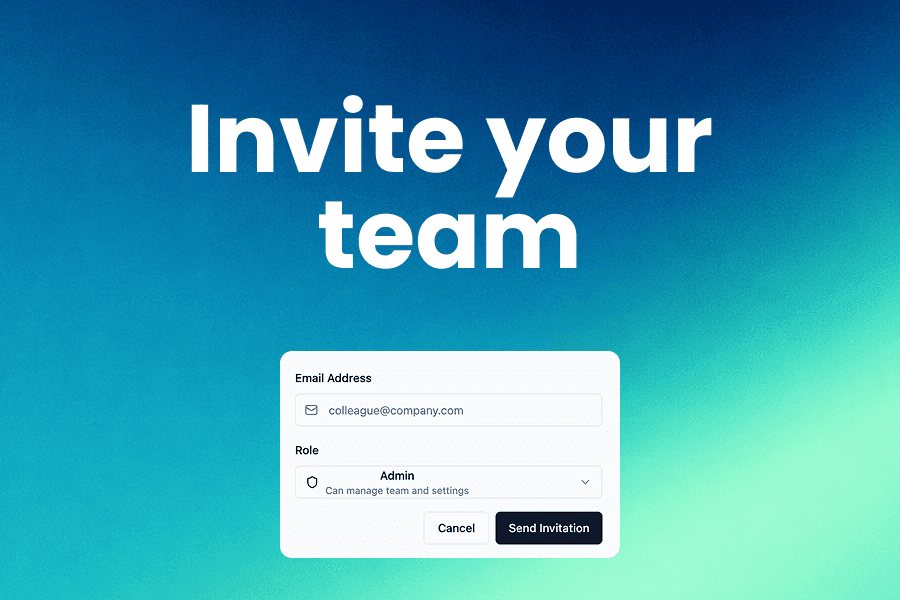
Organizations Feature: Invite your team and share a single workspace
I'm excited to introduce Organizations. A new way to work together with your team on ALLMO.
Key Features:
✅ Team Collaboration: Invite colleagues to your organization and work together on the same reports, prompts, and visibility data.
✅ Shared Credit Pool: All team members share from the same pool of Visibility, Warm-up, and Indexing credits. No more juggling separate accounts.
✅ Role-Based Access Control: Role management is deliberately kept simple. Members can do everything and Admin can do , except for managing billing and subscriptions.
✅ Easy Invitation Flow: Send email invitations directly from Settings. New users can sign up with email/password or Google OAuth and join your team instantly.
How It Works:
Your personal workspace is automatically an organization
Go to Settings > Organization to invite team members
All your existing data (reports, prompts, credits) is already available to share.
Team members can create new reports, add and edit prompts and view data in existing reports.
Organizations
Your workspace is now an Organization. All reports, prompts, credits, sitemap data, and settings live at the organization level and are automatically shared with teammates. An organization was created for you at signup, so you can invite collaborators immediately.
Centralizing data removes friction for teams scaling AI visibility work. Marketing, SEO, and product teams can now collaborate on the same sources of truth and measure impact consistently across models and prompts.
To get started, access organization settings at Settings > Organization, then invite teammates.
Roles & Permissions
There are only two role types (Admin, and Member) to keep user management simple, and straightforward collaboration on data and reports.
Permission quick-reference:
Admin: Full access (billing, subscription, team management, org settings)
Member: View/edit reports, prompts, data; can invite new members.
Shared Resources
All organization members share:
Credits (Visibility, Warm-up, and Indexing credits are pooled)
Reports and prompts
Subscriptions and billing
Sitemap data and URL warm-ups
Recommendations and knowledge gaps
FAQ
Q: Who can invite team members?
A: Owners and Admins can send invitations. Members can also invite by default and cancel pending invitations.
Q: What happens when an invitation expires?
A: Expired invitations cannot be used; Owners or Admins must resend the invite from Settings > Organization.
Q: Are credits shared across the organization?
A: Yes. Visibility, Warm-up, and Indexing credits are pooled and drawn from the same organization balance.
Q: How do I remove someone who left the company?
A: Go to Settings > Organization, open the member menu (⋯), and select Remove. Removal revokes all access immediately.
Q: Will existing reports and prompts be accessible to invited members?
A: Yes. All organization data (reports, prompts, sitemap, recommendations) is shared with members according to their role permissions.
Q: Do you charge per seat?
A: No. We do not charge per seat. You can invite as many people as you like to your organization. We want ALLMO to be collaborative.
Organizations Feature: Invite your team and share a single workspace
I'm excited to introduce Organizations. A new way to work together with your team on ALLMO.
Key Features:
✅ Team Collaboration: Invite colleagues to your organization and work together on the same reports, prompts, and visibility data.
✅ Shared Credit Pool: All team members share from the same pool of Visibility, Warm-up, and Indexing credits. No more juggling separate accounts.
✅ Role-Based Access Control: Role management is deliberately kept simple. Members can do everything and Admin can do , except for managing billing and subscriptions.
✅ Easy Invitation Flow: Send email invitations directly from Settings. New users can sign up with email/password or Google OAuth and join your team instantly.
How It Works:
Your personal workspace is automatically an organization
Go to Settings > Organization to invite team members
All your existing data (reports, prompts, credits) is already available to share.
Team members can create new reports, add and edit prompts and view data in existing reports.
Organizations
Your workspace is now an Organization. All reports, prompts, credits, sitemap data, and settings live at the organization level and are automatically shared with teammates. An organization was created for you at signup, so you can invite collaborators immediately.
Centralizing data removes friction for teams scaling AI visibility work. Marketing, SEO, and product teams can now collaborate on the same sources of truth and measure impact consistently across models and prompts.
To get started, access organization settings at Settings > Organization, then invite teammates.
Roles & Permissions
There are only two role types (Admin, and Member) to keep user management simple, and straightforward collaboration on data and reports.
Permission quick-reference:
Admin: Full access (billing, subscription, team management, org settings)
Member: View/edit reports, prompts, data; can invite new members.
Shared Resources
All organization members share:
Credits (Visibility, Warm-up, and Indexing credits are pooled)
Reports and prompts
Subscriptions and billing
Sitemap data and URL warm-ups
Recommendations and knowledge gaps
FAQ
Q: Who can invite team members?
A: Owners and Admins can send invitations. Members can also invite by default and cancel pending invitations.
Q: What happens when an invitation expires?
A: Expired invitations cannot be used; Owners or Admins must resend the invite from Settings > Organization.
Q: Are credits shared across the organization?
A: Yes. Visibility, Warm-up, and Indexing credits are pooled and drawn from the same organization balance.
Q: How do I remove someone who left the company?
A: Go to Settings > Organization, open the member menu (⋯), and select Remove. Removal revokes all access immediately.
Q: Will existing reports and prompts be accessible to invited members?
A: Yes. All organization data (reports, prompts, sitemap, recommendations) is shared with members according to their role permissions.
Q: Do you charge per seat?
A: No. We do not charge per seat. You can invite as many people as you like to your organization. We want ALLMO to be collaborative.
About the author
Niclas Aunin
I’m Niclas, the founder of ALLMO.ai, a platform helping brands measure, analyze and optimize their visibility in AI-generated search results like ChatGPT and Perplexity.
In this blog, I share practical optimization tips, product updates, and learnings from building ALLMO.ai.
Check out more articles
Start your AI Search Optimization journey today!
Applied Large Language Model Optimization (ALLMO), also known as GEO/AEO is gaining strong momentum.